
If you’re running Windows 7, and you’ve used the Remote Desktop Connection program (mstsc.exe), then you may have experienced the following: you start the program in Full Screen mode, then you go back to your computer at some point. But when you return to your Remote Desktop Connection session, it no longer goes to Full Screen — it just looks like a maximized window. With a few keystrokes, here’s how to remedy that with the Remote Desktop Window being in focus:
[Ctrl]+[Alt]+[Pause Break]
If your computer doesn’t have a “Pause Break” key, then maybe it has “Pause” or “Break”; if no luck there, try [Ctrl]+[Alt]+[F1] or [Ctrl]+[Alt]+[F2] or [Ctrl]+[Alt]+[F3] or … or [Ctrl]+[Alt]+[F12] — one of them should hopefully work for you.
And if you have a laptop, you might have to use the Fn key to get Pause and Break: [Ctrl]+[Alt]+[Fn]+[Pause]+[Break].
Before:
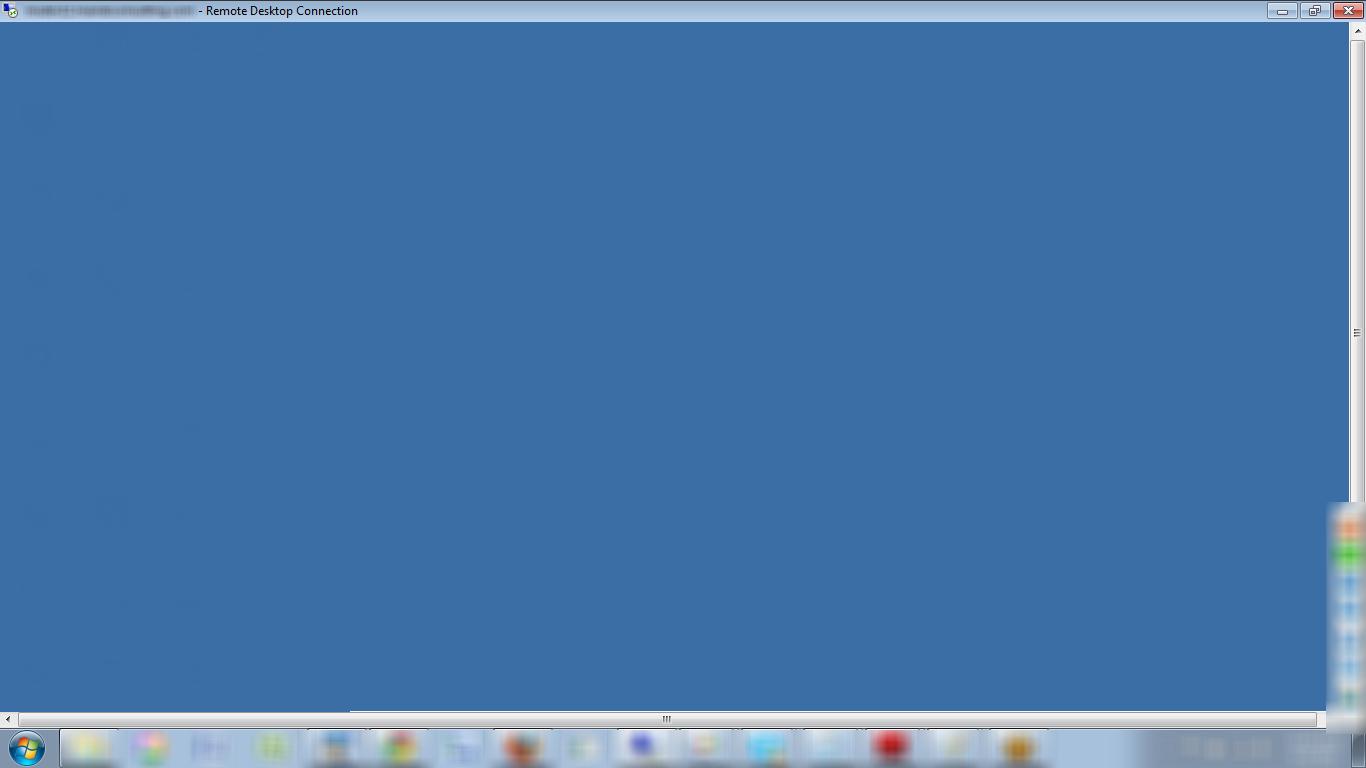
Remote Desktop Connection - Maximized
[Ctrl]+[Alt]+[Pause Break]
After:
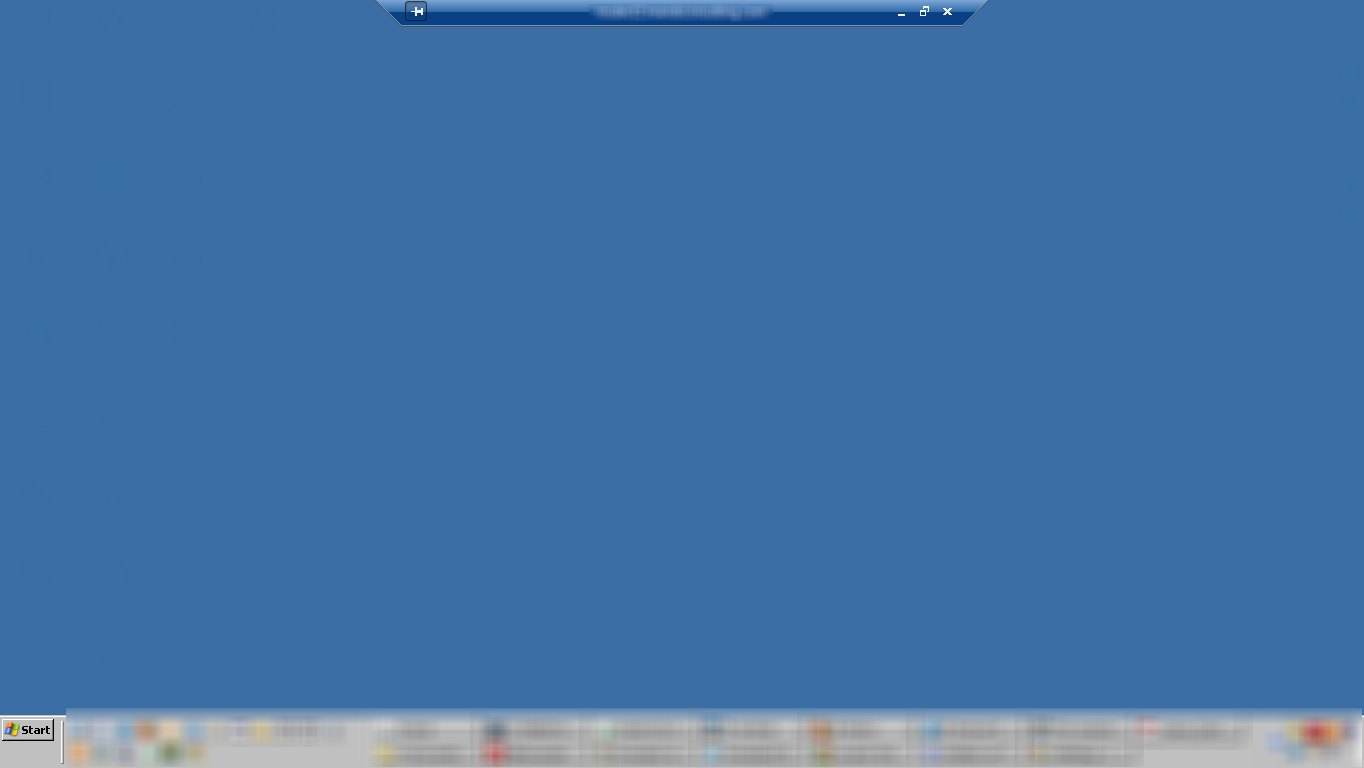
Remote Desktop Connection - Full Screen
39 Comments on “Remote Desktop – From Maximized to Full Screen (Windows 7)”
This tip helped me. Thank you..!
BTW, I have a laptop and had to use the Fn key to get Pause and Break. So there were 5 keys that I had to use: Ctrl+Alt+Fn+Pause+Break. Phew..!
Ctrl+Alt+Fn+Pause+Break saved my day on new Lenovo woho
Thank you! I had to use the Ctrl+Alt+Fn+Pause..Break as well. Drove me nuts when everyone would say Ctrl+Alt+Pause…Break and I could never get that to work. The was the key.
Thanks again!
It’s pretty cool .. thank you.
You, sir, are a good man. Thanks for the tip!
thanks it really helped me.
Yeah that works but it’s very annoying when I switch go remote desktop session a hundred times a day. Why would a new laptop with a brandy new Windows 7 OS have such a silly issue.. Why does upgrading always seem like downgrading..
Thank you!
Thank you for commenting. We’re very glad this has helped you all!
Thanks alot..
I using Ctrl + Alt + Fn + B + P to go back to fullscreen
This was really helpful! Thank you so much. Would it be possible to update the post so that you include [Fn] for laptops/computers that require it. I didn’t scroll down to the comments and it took me a while to try it out with the Fn key as well.
Also (for me), I could do:
[Ctrl] + [Alt] + [Fn] + [Pause]
or
[Ctrl] + [Alt] + [Fn] + [Break]
Both of these options worked for me!
Hi Thanks a lot for your responses.
The below mentioned approach worked for me on my laptop.
CTRL+Fn+Alt+Insert
Brilliant tip, saves hovering & clicking around with mouse, especially when the need is to switch between several VMs all day!
Perfect….
[Ctrl]+[Alt]+[Fn]+[Pause]+[Break]
this worked for me…
Thanks. It helped.
Worked for me thanks
THANK YOU!!
ctrl+alt+fn+pause worked for me in laptop. Thanks!
Thanks dude!
Thank you so much! I was going insane!
Whenever you connect to RDP from a different monitor (diff resolution size), you have to go into the RDP “Display” Tab and move the slider from small to full. This will adjust RDP to use the max size of your local display monitor. So every time you move to another monitor, you have to do it all over again. This works!
Great, Much appreciated. Thanks.
Thanks a ton it helped me
Where is the FN key ?
the FN key is usually located at the bottom left of your keyboard and is mainly found on laptop and more compact keyboards.
push alt + fn + b also work on lenovo thank you
Thank you so much!
Thanks a lot…It worked
In my laptop pouse and break key is not given so which is alternate key for this shorcut.
fn + b is an alternative for Break in Dell
Thanks its really helped me….
Thank you for solution.
thanks solution
It worked for me. Thanks a lot
thank you!!!
Thanks a lot , it saved by day 🙂
For Lenova, It worked with Clt+Alt+Fn+Pause+Break Hurry!!
Ctrl+Alt+Fn+B worked for DELL Latitude laptop . it does not have a pause or break or any function key colour highlighting to use letter B
Perfect! Worked for me…