

In the ever-evolving landscape of digital business, staying ahead of the curve is not just an advantage but a necessity. With decades of experience in identifying, scaling, mobilizing, and implementing digital transformation initiatives, the M&S Consulting team is driving success by combining process and technology. Regardless of where your business is at in its tech evolution, our expertise extends across seven main service line focus areas, ensuring that businesses in consumer, energy & industrial, finance & professional services, government & public sector, health & life sciences, and tech, media & telecommunications industries are not just ready for the future but … Read More
On-Premises Identity and Access Management – Vendor + Product + Feature Matrix (2021)

Finding the best Identity Management (IdM) products for your enterprise is not a trivial task. This is especially true when different products from different vendors that accomplish other objectives or services have remarkably similar (and therefore confusing) naming conventions. Not unlike other COTS enterprise suites, the ‘cloudification’ of these products has matured rapidly. To help layout the current Identity Management vendor/product landscape as we see it, we’ve put together the following matrix of products by vendors. Click Here to enlarge the table below. Identity management is challenging in today’s world, organizations must manage user identities across a wide range of … Read More
Publish a Blog Post from Word 2016 Preview to WordPress
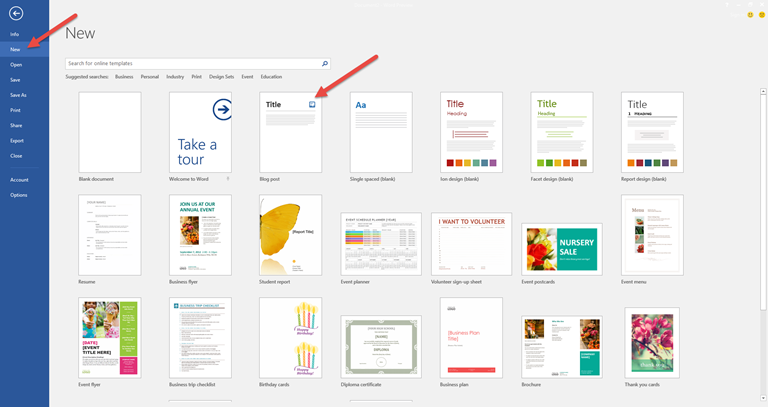
I just downloaded and installed Office 2016 Preview from our Office 365 tenant — nothing new with how you download and install 2016, but I still remember the days of getting Office media on CDs, so I always appreciate how easy it is now with O365 – and I like it. One of the things I noticed I haven’t used before was posting a blog post directly from Word. I don’t use this feature (though it has existed for many years in Word), so I thought I would give it a whirl. Unsurprisingly, this post was written in Word 2016 … Read More
Microsoft Identity Manager… Coming Soon

The IDM team at M&S Consulting is excited about Microsoft’s upcoming release / update / rebranding of Forefront Identity Manager to Microsoft Identity Manager. We’ve stood up a lab using the latest (as of this writing) CTP3 and so far have enjoyed playing around with the various new features and wanted to share our quick thoughts. Outside of the modernization and support for the latest platforms and infrastructure, such as, Server 2012 R2, SharePoint 2013, SQL Sever 2014, Microsoft has included several new features to add to the product offering. These include Privileged Account Management / Access and Cloud and … Read More
Microsoft SharePoint Workspace 2010 Sync Errors

If you are a heavy SharePoint user, there is a chance you are still running SharePoint Workspace 2010. Today, after months of this tool working flawlessly, I suddenly ran into some errors during syncing and thought I would share the resolution. Details: Harmonica Version Not Found I started with this error. After disconnecting the library and trying to reconnect, I received the CSI error 123 (below). More info: http://support.microsoft.com/kb/2754412 Details: CSI error 123 I understand this can happen if temporary data is corrupted. I ran the following command on my 64-bit OS: “%SystemDrive%\Program Files (x86)\Microsoft Office\Office14\groove.exe” /clean /all At this … Read More
Windows 8.1 and the return of the start button
At last, the long awaited Windows 8.1 update is here! Windows users can now get back to using the familiar ‘Start Button’ we are all used to. Before I get into the new features of Windows 8.1 both ascetically and behind the scenes, I’d like to talk about the install time and process. For starters, the install time isn’t exactly speedy, and instead of telling the user what is being updated, Microsoft has chosen to to use phrases like ‘Getting Ready’ , ‘Setting up a Few More Things’, and ‘Taking Care of a few Things’. Once the install is complete, the … Read More
IE6 is [almost] dead – Usage is 2.4% in USA, 34.6% in China
It’s not just web 2.0 developers making the push away from IE6 anymore. Microsoft is publishing the stats, and even they want people off of Internet Explorer 6 (IE6). Join the cause by pasting your own “STOP using this out-of-date browser” banner (provided by Microsoft): <!– [if lt IE 7]> <div style=’ clear: both; height: 59px; padding:0 0 0 15px; position: relative;’> <a href="http://windows.microsoft.com/en-US/internet-explorer/products/ie/home?ocid=ie6_countdown_bannercode" alt=""><img src="http://www.theie6countdown.com/images/banners/warning_bar_0000_us.jpg" border="0" height="42" width="820" alt="You are using an outdated browser. For a faster, safer browsing experience, upgrade for free today." /></a></div> <![endif]–><!– [if lt … Read More
SSIS Tip – Xpath for Root Level Attributes (XML Tasks)
For some reason, SSIS’s XML Data source does not allow you to directly access root level attributes. Therefore, we’ve got to use a XML Task and variables in order to pull this data in. Create a variable for every attribute, use the string data type (change later in data flow if need be) Use the following example (fill your own Xpath in the Second Operand) This example will only pull in one value. Should there be multiple attributes with the same name, you’ll have to use a Foreach loop.